
 If you are new to Python or not very familiar to Computer Programming, and having the disk space in your PC's System Partition (usually C:) of 150 MB, you can directly choose *Install Now*.
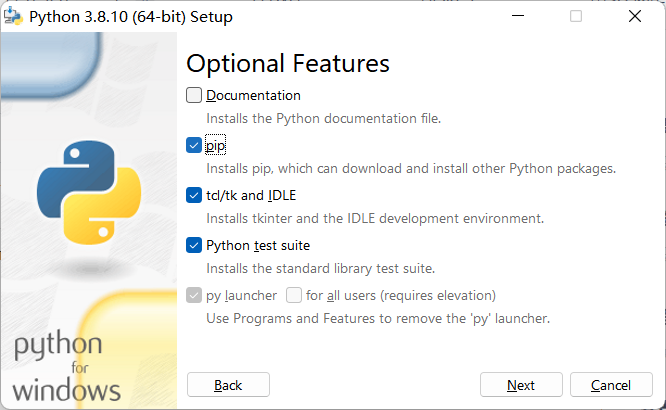
However, if you want to do it like a pro, choosing *Customize Installation*, it's a necessary to be sure to check `pip` and `py launcher` will be installed on your computer(see screenshot below). The two options is required for the next step of installing the requirements.
If you are new to Python or not very familiar to Computer Programming, and having the disk space in your PC's System Partition (usually C:) of 150 MB, you can directly choose *Install Now*.
However, if you want to do it like a pro, choosing *Customize Installation*, it's a necessary to be sure to check `pip` and `py launcher` will be installed on your computer(see screenshot below). The two options is required for the next step of installing the requirements.
 After the installation, you can enter in your terminal(CMD/PowerShell/Bash/etc): "python" to ensure whether the installation was successful. If it was, your terminal will show things like below:
 1. Installing Requirements
It's better to open your terminal(CMD/PowerShell/Bash/etc) under Administrator Mode.
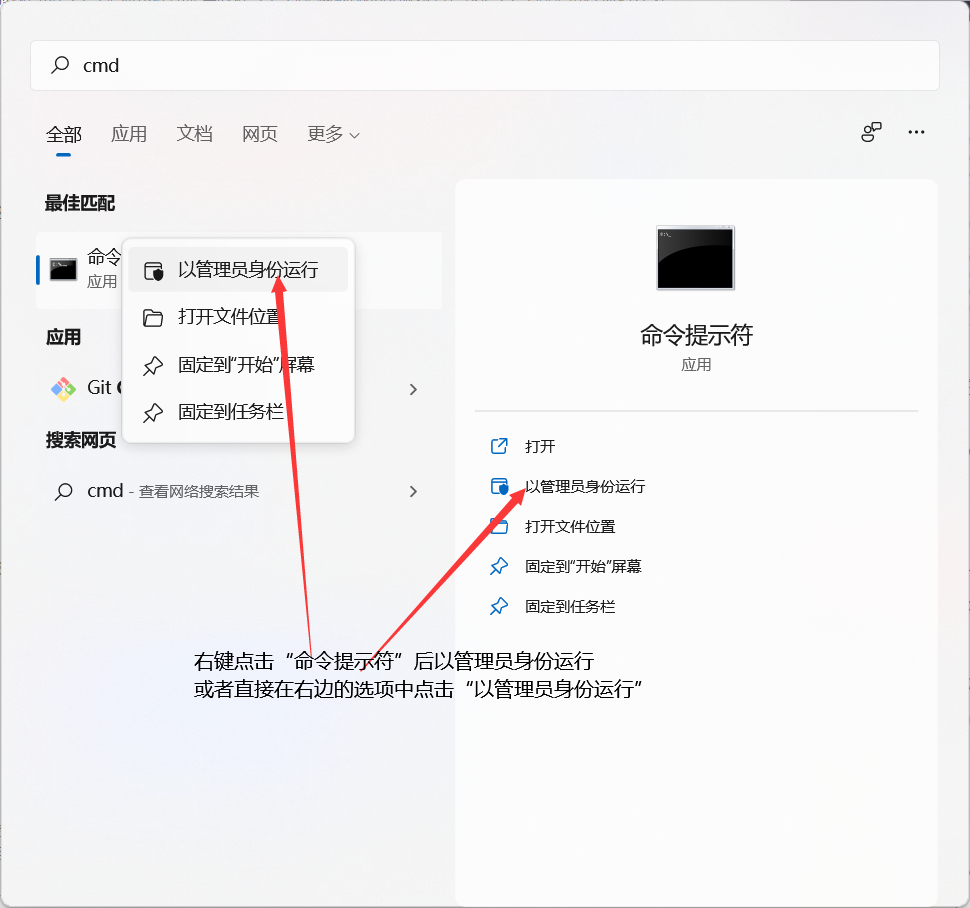
For example, if you want to use CMD in Administrator Mode, you can search `cmd` in the *Start Menu*, right click it and *Run as Administrator*
1. Installing Requirements
It's better to open your terminal(CMD/PowerShell/Bash/etc) under Administrator Mode.
For example, if you want to use CMD in Administrator Mode, you can search `cmd` in the *Start Menu*, right click it and *Run as Administrator*
 Okay, after that, please enter in your terminal:
`pip install mido`
`pip install brotli`
If successful you will see something like below:
Okay, after that, please enter in your terminal:
`pip install mido`
`pip install brotli`
If successful you will see something like below:
 2. Download This Package and Demo(s)
- If you using Git, you can use the following commands to clone this lib:
`git clone -b pkgver https://gitee.com/EillesWan/Musicreater.git`
- If Git is not installed, you can download the zip package from the code page(from [GitHub](https://github.com/EillesWan/Musicreater.git) or [Gitee](https://gitee.com/EillesWan/Musicreater.git)). Or you are a Chinese fan having a QQ account, you can [Join the QQ Group 861684859](https://jq.qq.com/?_wv=1027&k=hpeRxrYr) and get it from our GroupFiles.
2. Download This Package and Demo(s)
- If you using Git, you can use the following commands to clone this lib:
`git clone -b pkgver https://gitee.com/EillesWan/Musicreater.git`
- If Git is not installed, you can download the zip package from the code page(from [GitHub](https://github.com/EillesWan/Musicreater.git) or [Gitee](https://gitee.com/EillesWan/Musicreater.git)). Or you are a Chinese fan having a QQ account, you can [Join the QQ Group 861684859](https://jq.qq.com/?_wv=1027&k=hpeRxrYr) and get it from our GroupFiles.
 2. Start Using Demo(s)
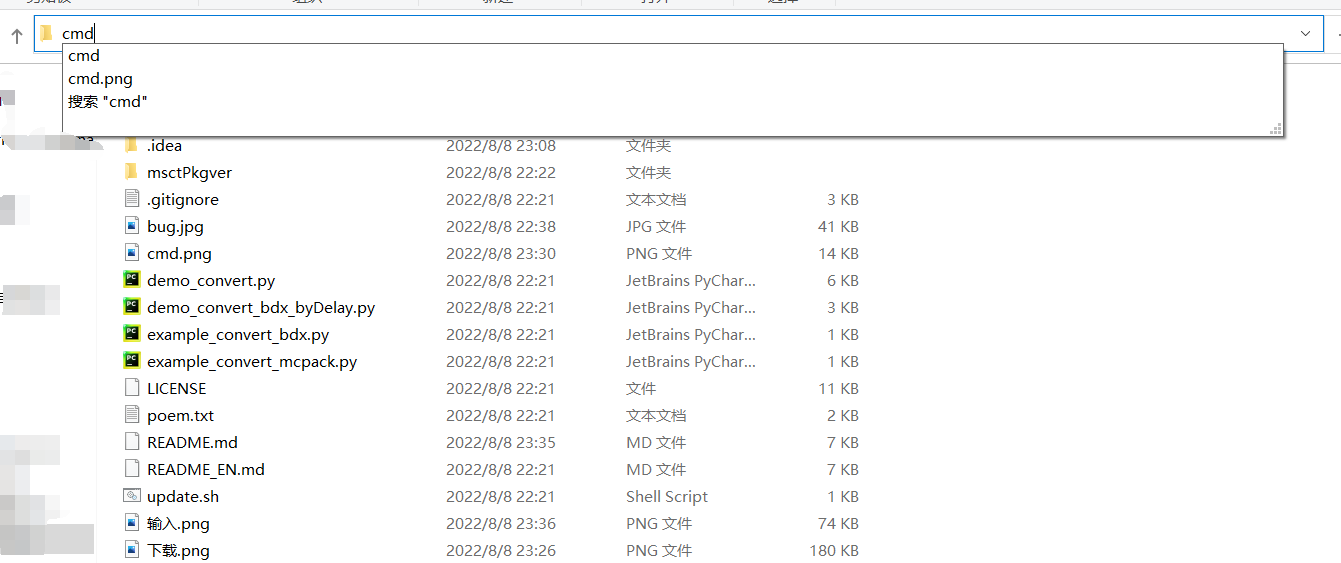
Open your terminal in the directory of this, taking CMD, for example, just enter the directory and enter `cmd` in the path box:
2. Start Using Demo(s)
Open your terminal in the directory of this, taking CMD, for example, just enter the directory and enter `cmd` in the path box:

 And enter one of the commands below by choosing what you need:
`python demo_convert.py`
`python demo_convert_bdx_byDelay.py`
### Addition for Error(s) Using or Installing
1. Environment Error of Microsoft Visual C++ Redistributable
If you meet this condition as the screenshot shows:
And enter one of the commands below by choosing what you need:
`python demo_convert.py`
`python demo_convert_bdx_byDelay.py`
### Addition for Error(s) Using or Installing
1. Environment Error of Microsoft Visual C++ Redistributable
If you meet this condition as the screenshot shows:
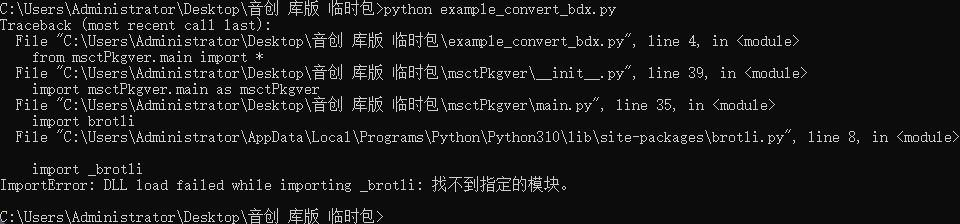 Your MSVC Environment may be not installed, and you can download and install
> [Here of 64-Bit VCREDIST](https://aka.ms/vs/17/release/vc_redist.x64.exe)
> [Here of 32-Bit VCREDIST](https://aka.ms/vs/17/release/vc_redist.x86.exe)
Thank our groupmate *Mono* again for helping finding this problem.
## Under Linux OS
### Install Runtime Environment
0. Install and Verify Python Runtime
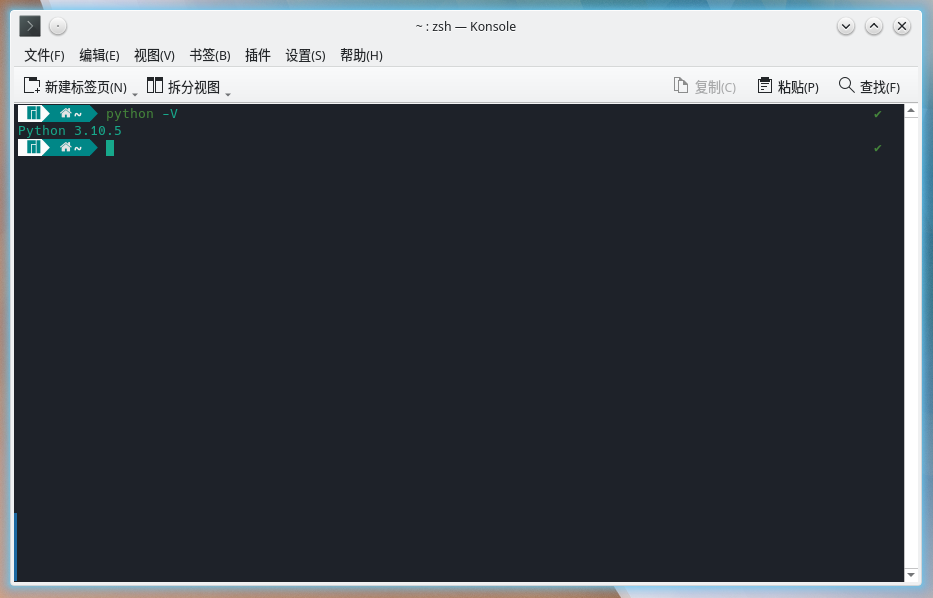
Common Linux Releases do include a Python Runtime Environment, what we should do only is to check it is a satisfied version to our program. If the version ≥Python3.6, theoretically our program can be run.
We can type:
```bash
python -V
```
To check the Python version, as the follows
Your MSVC Environment may be not installed, and you can download and install
> [Here of 64-Bit VCREDIST](https://aka.ms/vs/17/release/vc_redist.x64.exe)
> [Here of 32-Bit VCREDIST](https://aka.ms/vs/17/release/vc_redist.x86.exe)
Thank our groupmate *Mono* again for helping finding this problem.
## Under Linux OS
### Install Runtime Environment
0. Install and Verify Python Runtime
Common Linux Releases do include a Python Runtime Environment, what we should do only is to check it is a satisfied version to our program. If the version ≥Python3.6, theoretically our program can be run.
We can type:
```bash
python -V
```
To check the Python version, as the follows
 - Not Necessary
If you want to change a Python version just as what I want to do, it is such a great fantastic action! Let do as the follows:
- pacman Package Manager(In Arch Linux Mostly)
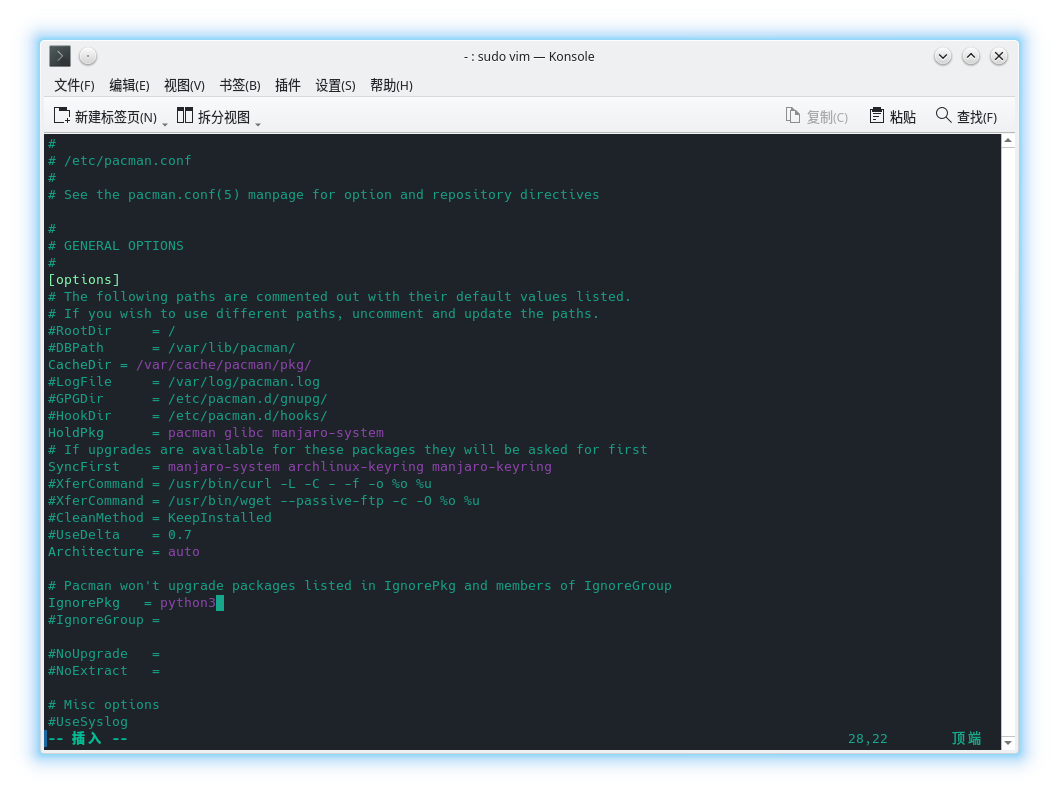
Let's write python3 into the ingore list of updating. Via `vim` to edit `/etc/pacman.conf`, add `python3` after `IgnorePkg`.
```bash
sudo vim /etc/pacman.conf
```
- Not Necessary
If you want to change a Python version just as what I want to do, it is such a great fantastic action! Let do as the follows:
- pacman Package Manager(In Arch Linux Mostly)
Let's write python3 into the ingore list of updating. Via `vim` to edit `/etc/pacman.conf`, add `python3` after `IgnorePkg`.
```bash
sudo vim /etc/pacman.conf
```
 Then we can search for python releases in [Arch Achieve](https://archive.archlinux.org/packages/).(*HERE, under Arch, Python refers to Python3 defaultly, while some other Linux releases using Python2 as default. So dose Arch Achieve.*)What I find here is [Python3.8.6](https://archive.archlinux.org/packages/p/python/python-3.8.6-1-x86_64.pkg.tar.zst), so let's download she via `pacman`:
```bash
sudo pacman -U https://archive.archlinux.org/packages/p/python/python-3.8.6-1-x86_64.pkg.tar.zst
```
Then we can search for python releases in [Arch Achieve](https://archive.archlinux.org/packages/).(*HERE, under Arch, Python refers to Python3 defaultly, while some other Linux releases using Python2 as default. So dose Arch Achieve.*)What I find here is [Python3.8.6](https://archive.archlinux.org/packages/p/python/python-3.8.6-1-x86_64.pkg.tar.zst), so let's download she via `pacman`:
```bash
sudo pacman -U https://archive.archlinux.org/packages/p/python/python-3.8.6-1-x86_64.pkg.tar.zst
```
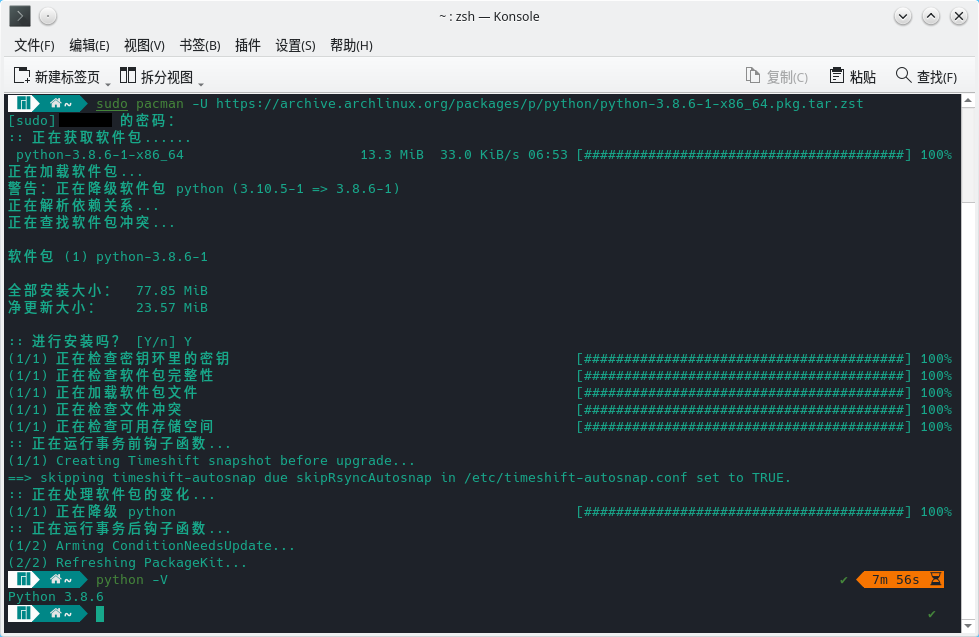 Perfect!
1. Install and Verify pip Package Manager
Before installing, it is to be checked, wheather Python's pip is OK:
```bash
python -m pip # To check is pip installed
# If a long tip occured, it is OK
# If returned as this, then not.
/usr/bin/python: No module named pip
# We can install pip via:
sudo pacman -S python-pip
# Verfy, remember.
python -m pip
# If you did but failed, we should use other methods to install pip:
wget https://bootstrap.pypa.io/get-pip.py
sudo python get-pip.py
# Verfy, must.
python -m pip
```
Over after checking, lets install the dependences.
```bash
pip install mido -i https://mirrors.aliyun.com/pypi/simple/
pip install brotli -i https://mirrors.aliyun.com/pypi/simple/
```
See the tips below as successfully installed:
### Download this sources pack and Using its demos.
1. 使用Git下载本库及其示例代码
```bash
git clone -b pkgver https://gitee.com/EillesWan/Musicreater.git MSCTpkgver
```
当上述命令执行成功,你会在执行此命令的所在位置发现一个名为 `MSCTpkgver` 的文件夹,其中包含的正是我们心心念念下载的本程序和示例代码。
而我们要运行的也正是示例代码,因此,赶快进入下载到的文件夹:
```bash
cd MSCTpkgver
```
1. 开始使用
在目录下打开终端,执行以下命令:(选择你需要的)
```bash
python demo_convert.py
python demo_convert_bdx_byDelay.py
```
2. More Info for Parameters of Our Demo Program(s)
Perfect!
1. Install and Verify pip Package Manager
Before installing, it is to be checked, wheather Python's pip is OK:
```bash
python -m pip # To check is pip installed
# If a long tip occured, it is OK
# If returned as this, then not.
/usr/bin/python: No module named pip
# We can install pip via:
sudo pacman -S python-pip
# Verfy, remember.
python -m pip
# If you did but failed, we should use other methods to install pip:
wget https://bootstrap.pypa.io/get-pip.py
sudo python get-pip.py
# Verfy, must.
python -m pip
```
Over after checking, lets install the dependences.
```bash
pip install mido -i https://mirrors.aliyun.com/pypi/simple/
pip install brotli -i https://mirrors.aliyun.com/pypi/simple/
```
See the tips below as successfully installed:
### Download this sources pack and Using its demos.
1. 使用Git下载本库及其示例代码
```bash
git clone -b pkgver https://gitee.com/EillesWan/Musicreater.git MSCTpkgver
```
当上述命令执行成功,你会在执行此命令的所在位置发现一个名为 `MSCTpkgver` 的文件夹,其中包含的正是我们心心念念下载的本程序和示例代码。
而我们要运行的也正是示例代码,因此,赶快进入下载到的文件夹:
```bash
cd MSCTpkgver
```
1. 开始使用
在目录下打开终端,执行以下命令:(选择你需要的)
```bash
python demo_convert.py
python demo_convert_bdx_byDelay.py
```
2. More Info for Parameters of Our Demo Program(s)
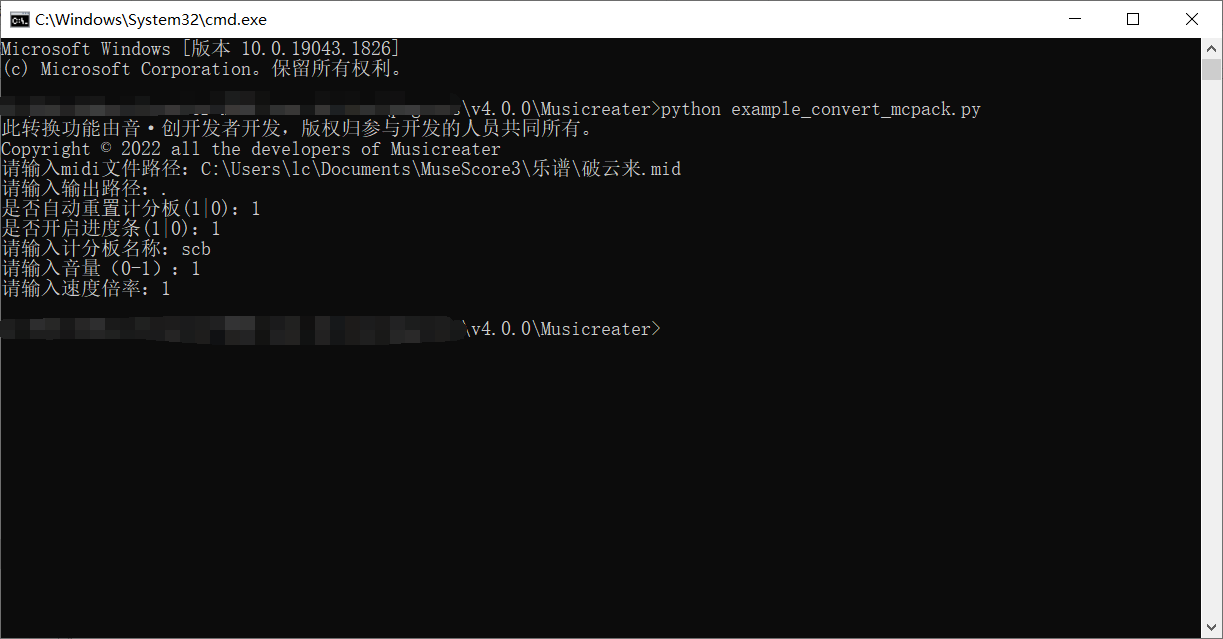 |Input Prompt|English Translation|Description|
|----------------|----------------|-------|
|请输入MIDI文件路径|Midi File Path|Path of a .mid file or a directory. While directory entered, our demo will convert all midi(s) in the directory|
|请输入输出路径|Output Path|Where files converted in|
|是否重置计分板|Whether Reset Scoreboard Automatically|Can only be 1 or 0(Recommanded 1)|
|*进度条[注]|Progressbar|Whether to enable Progressbar and customize progressbar style. Type 0 or False to disable, 1 or True to use default style, or type using format taught in follow the Instructions below to customize one you like|
|请输入计分板名称|Scoreboard Name|*Only not byDelay* The name of scoreboard that player using|
|请输入音量|Volume|Only decimal in [0,1],(Recommanded 1)|
|请输入速度倍率|Speed Multiplying Factor|Maybe you want to play it faster(>1) or slower(>0 <1)?|
|请输入玩家选择器|Player Selector|Full Selector including `@x`. E.g: Play for players tagged `Holo`, enter `@a[tag=Holo]` on this parameter|
# Instructions for **Customize Progress Bar**
We have supported the function of making progress bar in *Minecraft*'s music player. And also the method of customize them. So the following instructions are about the parameters of the Progress Bar Customizition.
A Progress Bar, of course, is composed of **changeless** parts and **changable** parts. And the changable parts include texts or *images*(these images are made up of texts, or we can say, character paintings 😁). That is, for *Minecraft*, a changable image in a progress bar is just the "bar" part(which is like a stripe).
We use a string to describe the style of progress bar you need, and it includes many **identifier**s to replace the changable parts.
There are the identifiers:
| Identifier | Changable Part |
|--------------|------------------------------------------------------|
| `%%N` | Music name(file name which is imported into program) |
| `%%s` | Value of scoreboard of now |
| `%^s` | Max value of scoreboard |
| `%%t` | Current playback time |
| `%^t` | Total music time |
| `%%%` | Current playback progress |
| `_` | To be replaced by the *Bar* part of the progress bar |
The `_` is a placeholder to identifying the *bar* part, yeah, just the changable image.
This is an example of **style description string**, and this is also the default style of *Musicreater*'s progress bar.
`▶ %%N [ %%s/%^s %%% __________ %%t|%^t]`
This is a progress bar with only one line, but it is possible if you want to give a multiline parameter into the style description string.
But the string above is only for style identification, but we also need to identifying the changable image's image(just what the bar's look).
A "bar", simply, included 2 parts: *Have Been Played* & *Not Been Played*. So we use a tuple to pass the parameter. It's under a simple format: `(str: played, str: not)`. For example, the default parameter is below:
`('§e=§r', '§7=§r')`
So it's time to combine what I said in one parameter now!
This is a default definder parameter:
`('▶ %%N [ %%s/%^s %%% __________ %%t|%^t]',('§e=§r', '§7=§r'))`
*Tip: To avoid errors, please not to use the identifiers as the other part of your style.*
|Input Prompt|English Translation|Description|
|----------------|----------------|-------|
|请输入MIDI文件路径|Midi File Path|Path of a .mid file or a directory. While directory entered, our demo will convert all midi(s) in the directory|
|请输入输出路径|Output Path|Where files converted in|
|是否重置计分板|Whether Reset Scoreboard Automatically|Can only be 1 or 0(Recommanded 1)|
|*进度条[注]|Progressbar|Whether to enable Progressbar and customize progressbar style. Type 0 or False to disable, 1 or True to use default style, or type using format taught in follow the Instructions below to customize one you like|
|请输入计分板名称|Scoreboard Name|*Only not byDelay* The name of scoreboard that player using|
|请输入音量|Volume|Only decimal in [0,1],(Recommanded 1)|
|请输入速度倍率|Speed Multiplying Factor|Maybe you want to play it faster(>1) or slower(>0 <1)?|
|请输入玩家选择器|Player Selector|Full Selector including `@x`. E.g: Play for players tagged `Holo`, enter `@a[tag=Holo]` on this parameter|
# Instructions for **Customize Progress Bar**
We have supported the function of making progress bar in *Minecraft*'s music player. And also the method of customize them. So the following instructions are about the parameters of the Progress Bar Customizition.
A Progress Bar, of course, is composed of **changeless** parts and **changable** parts. And the changable parts include texts or *images*(these images are made up of texts, or we can say, character paintings 😁). That is, for *Minecraft*, a changable image in a progress bar is just the "bar" part(which is like a stripe).
We use a string to describe the style of progress bar you need, and it includes many **identifier**s to replace the changable parts.
There are the identifiers:
| Identifier | Changable Part |
|--------------|------------------------------------------------------|
| `%%N` | Music name(file name which is imported into program) |
| `%%s` | Value of scoreboard of now |
| `%^s` | Max value of scoreboard |
| `%%t` | Current playback time |
| `%^t` | Total music time |
| `%%%` | Current playback progress |
| `_` | To be replaced by the *Bar* part of the progress bar |
The `_` is a placeholder to identifying the *bar* part, yeah, just the changable image.
This is an example of **style description string**, and this is also the default style of *Musicreater*'s progress bar.
`▶ %%N [ %%s/%^s %%% __________ %%t|%^t]`
This is a progress bar with only one line, but it is possible if you want to give a multiline parameter into the style description string.
But the string above is only for style identification, but we also need to identifying the changable image's image(just what the bar's look).
A "bar", simply, included 2 parts: *Have Been Played* & *Not Been Played*. So we use a tuple to pass the parameter. It's under a simple format: `(str: played, str: not)`. For example, the default parameter is below:
`('§e=§r', '§7=§r')`
So it's time to combine what I said in one parameter now!
This is a default definder parameter:
`('▶ %%N [ %%s/%^s %%% __________ %%t|%^t]',('§e=§r', '§7=§r'))`
*Tip: To avoid errors, please not to use the identifiers as the other part of your style.*